Follow-me printing allows a user to send a job to a shared queue and release it after authenticating at a compatible printer. The job is held until the user chooses where to collect it or until the system removes it under the organisation's retention policy.
The practical value depends on more than adding a release button. The queue, user identity, device compatibility, failure behaviour and support process all need to work together.
How Does Follow-Me Printing Work?
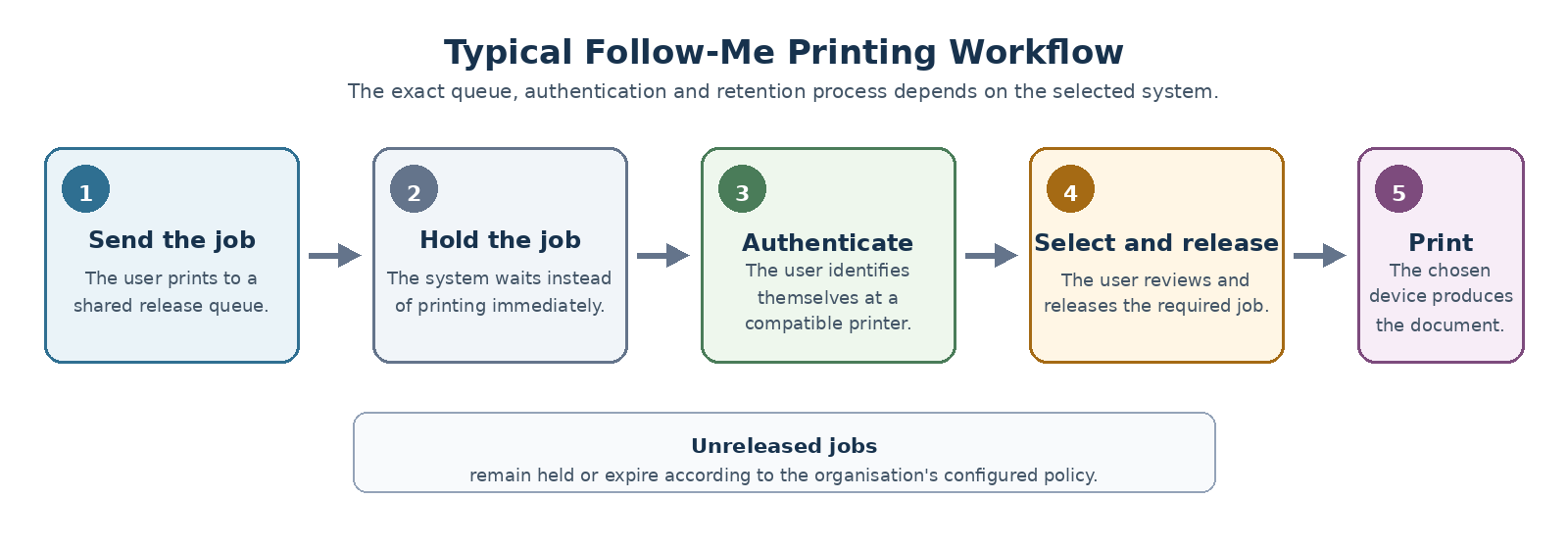
A typical workflow has five stages:
- The user sends a document to a shared print queue.
- The system holds the job instead of printing it immediately.
- The user goes to an enabled printer and authenticates.
- The user selects and releases the required job.
- The chosen printer produces the document, while unreleased jobs remain held or expire according to policy.
The shared queue may be provided through an on-premises print server, a cloud service or another managed platform. Ask the supplier to show the complete route from the user's device to the final printer.
How Is It Different From Basic Secure Print Release?
Basic secure release can hold a job for collection at one particular printer. Follow-me or pull-print workflows normally add the ability to release the job at more than one compatible device within an approved group.
That distinction matters when:
- staff move between floors or offices;
- one printer is busy or unavailable;
- several devices provide the same everyday functions; or
- the organisation wants to deploy one familiar queue instead of asking users to select a physical printer in advance.
The separate guide to secure printing covers the broader reasons for holding documents until a user is present. This page focuses on making the shared release workflow operate reliably.
Define Which Users and Locations Are Included
Start by deciding who should use the shared queue and where it should work.
Record:
- sites, floors or departments included;
- permanent, temporary and visiting users;
- Windows, macOS, mobile or other supported user devices;
- people who require direct printing for a specialist task;
- printers that should participate in the release group; and
- locations where the queue must not be available.
A single organisation may need more than one shared queue. For example, ordinary office documents and specialist large-format or finishing work may require different device groups.
Choose an Authentication Method That Fits the Workplace
Users may release jobs through a PIN, staff card, mobile or QR process, directory credentials, or another supported method.
Ask how the proposed method works for:
- new starters;
- temporary staff;
- visitors;
- shared or loan devices;
- lost or forgotten cards;
- users without a suitable mobile device;
- accessibility requirements; and
- staff working across more than one location.
The simplest method is not always the one requiring the least administration. Include enrolment, replacement and support work in the comparison.
Verify Identity and Access Ownership
The release system needs a reliable way to associate the held job with the correct user.
Confirm:
- which identity source is used;
- who creates and removes access;
- how name or account changes are handled;
- whether separate organisations or guest users can be supported;
- who can see another user's jobs;
- which administrators can release, delete or inspect held jobs; and
- how access is removed when someone leaves.
Do not assume that disabling an email account, staff card or directory record automatically removes every form of print access. Ask for the complete leaver process.
Check Device and Queue Compatibility
A printer being able to print a document does not automatically mean it can participate fully in the shared release workflow.
For each proposed device, verify:
- whether the release interface is supported;
- which authentication methods work;
- whether the device can display and select held jobs;
- whether colour, duplex and paper-size choices are retained;
- whether finishing options remain available;
- whether the same driver or print options work across the release group;
- whether older devices require extra hardware or software; and
- what happens when a job requests a feature the chosen printer cannot provide.
Ask suppliers to test real documents that use the settings staff depend on. A basic single-page test will not expose every compatibility problem.
Understand the Software, Hosting and Licensing Model
The proposed system may depend on software, embedded device applications, connectors, servers, cloud services or a combination of these.
Ask the supplier to identify:
- every required component;
- where each component runs;
- who owns and maintains it;
- which licences are charged by user, device, site or feature;
- whether support and updates are included;
- which existing licences can be reused;
- what happens when a device is added or removed; and
- whether the service continues if a subscription ends.
The comparison should show both the initial setup and the continuing operating responsibility.
Set a Clear Job Retention and Deletion Policy
Held jobs should not remain available indefinitely without a reason.
Agree:
- how long unreleased jobs are retained;
- whether the period can differ by queue or user group;
- what happens when the period expires;
- whether users can delete their own jobs;
- whether administrators can delete or release jobs;
- what information is retained after a job is printed or deleted; and
- how the policy is communicated to users.
The selected period should reflect how people work. A very short period may remove legitimate jobs, while a long period may create unnecessary storage and administration.
Decide What Happens When Something Is Offline
Test the effect of failure at each stage:
- the user's connection;
- the shared queue;
- the server, connector or cloud service;
- the authentication service;
- the printer;
- the device's release interface; and
- the network between sites.
Ask whether users can:
- release a job at another device;
- use a temporary direct-print queue;
- continue printing during an identity-service problem;
- see that a destination device is unavailable;
- recover jobs after the service returns; or
- receive a clear error instead of resending the same document repeatedly.
A fallback route should be documented before the system becomes essential.
Plan for Different Sites Carefully
A shared workflow can extend across several locations, but that does not mean every job should be available everywhere.
Define:
- which sites share a queue;
- whether users can release jobs outside their home location;
- how device groups are separated;
- whether network links are suitable;
- who supports each location;
- how local printers are identified; and
- what happens if one site loses access to the central service.
The multi-site managed print guide covers the wider inventory, support and rollout planning needed across branches.
Decide Which Logs and Reports Are Actually Needed
Reporting should support a defined operational or administrative purpose.
Ask whether authorised administrators can see:
- submitted and released jobs;
- deleted or expired jobs;
- release location;
- device errors;
- user or department totals;
- colour and mono usage;
- failed authentication;
- administrative actions; and
- service availability.
Also ask who can access the information, how long it is retained and how users are informed. Do not collect more detail simply because the platform can provide it.
Pilot the Complete Workflow
A useful pilot should test more than successful printing.
Include:
- different user devices and operating systems;
- ordinary office documents;
- colour and mono jobs;
- duplex and paper-size settings;
- large or complex files;
- any required finishing;
- PIN, card, mobile or other authentication;
- a new starter and a leaver;
- an offline or busy printer;
- an expired job;
- a user moving to another compatible device;
- support and escalation; and
- the documented fallback route.
Record the expected result, actual result, owner and action for every failed test.
Download the follow-me printing implementation checklist
The checklist provides a structured way to record requirements, test results, ownership and unresolved actions before wider rollout.
Define Acceptance Before Rollout
Agree what must be true before the pilot is approved.
Acceptance may include:
- the shared queue is deployed to the intended users;
- users can authenticate through the agreed method;
- compatible devices show the correct jobs;
- required print settings are retained;
- unreleased jobs expire as intended;
- leaver access is removed;
- failure and fallback tests are complete;
- support ownership is clear;
- administrators have only the required access; and
- user instructions are ready.
Do not treat a successful demonstration on one device as proof that the full workflow is ready.
Questions to Ask Suppliers
- Which queue, server, cloud, connector and device components are required?
- Which printers are fully compatible, and which need additional software or hardware?
- Which print options may be lost when a job is released at another model?
- How are users identified and authenticated?
- How are new starters, temporary users and leavers handled?
- How long are unreleased jobs retained, and what is kept after deletion?
- What happens if the queue, identity service, network or printer is unavailable?
- Is a direct-print fallback available and controlled?
- Can users release jobs across sites, and can that be restricted?
- Which licences, subscriptions, updates and support services are required?
- What logs and reports are available, and who can access them?
- How will the complete workflow be piloted, accepted and handed over?
Compare the Whole Workflow
A follow-me printing proposal should explain how a job moves from the user's device to the shared queue, how identity is checked, how compatible printers are selected and what happens when part of the service is unavailable.
Compare the workflow, operating responsibility, compatibility, retention rules and support arrangements together. A shared queue is only useful when staff can rely on it during ordinary work and understand what to do when it does not behave as expected.
For wider fleet support and service planning, see managed print services.